

Now that you have been offered admission by JAMB to study your preferred course, the next line of action is to accept or reject your admission. But this post will focus on how to accept your admission. Let’s go.
Make sure you have the sim card which you used during JAMB exam registration.
Be sure that this sim card is inserted in the phone which you’d be using to accept your JAMB admission.
Now that you’ve confirmed the first two steps, open the SMS app on your phone.
Type in your JAMB registration number, press the space bar, and then type ACCEPT.
Make sure you leave a space (space bar and not enter key) in between your registration number and the word ‘accept’.
Also make sure that the word ‘accept’ is in capital letters, written as ACCEPT.
After you have typed your registration number, [space bar], ACCEPT
Send the message to 55019. Yes, the same code you used when you wanted to check your jamb result.
You can send the message to either 55019 or 66019.
Once you have successfully sent the message via SMS, you can proceed to your JAMB profile on the correct JAMB portal.
Log into your JAMB profile on the correct JAMB portal to verify that you have indeed accepted your admission.
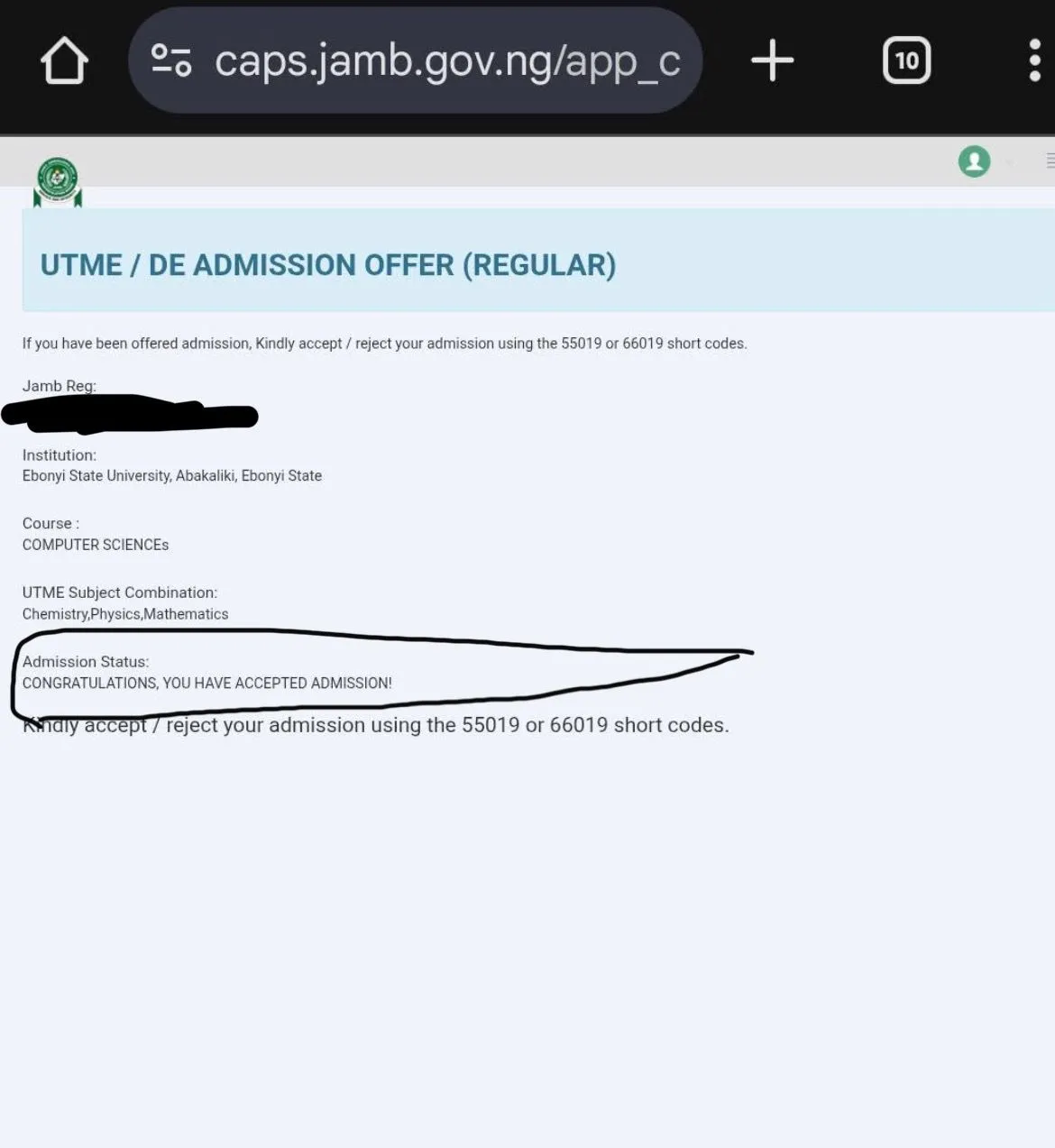
If the process to accept your admission was successful, you will be able to view something like the screenshot below, detailing your passport photo, name, preferred course and preferred institution.

study4cbt.com
If you can view the details of your admission (including duration of studies, course, faculty and admission approval date), that means you have successfully accepted your admission.
Next on will be how to print your official admission letter from JAMB. I will show you how to print your JAMB admission letter on my next post.
Meanwhile, big congratulations on your admission. You can comment which school and course you’ve been admitted into. See you soonest!